
Windows 10
Features, updates & recovery
Features | Personalizing | Privacy | Security
Updates | Recovery
All trademarks, company names or logos are the property of their respective owners.

Released on July 29, 2015 Windows 10 Update 22H2 support ends on October 14, 2025.
After October 14, 2025, Microsoft will no longer provide free software updates from Windows Update, technical assistance, or security fixes for Windows 10. Your PC will still work, but we recommend moving to Windows 11. Windows 11 offers a modern and efficient experience designed to meet current demands for heightened security.
— Microsoft
Most Windows 10 Computers Cannot Run Windows 11
By October 2025, more than a billion PCs will be running a dead operating system, leaving many computers vulnerable to malware or headed for the trash. The one billion estimate comes from two sources: Microsoft, which has said there are more than 1.4 billion Windows PCs, and Statcounter, which shows that the vast majority of PCs on the planet — more than 70% — run Windows 10.
— PCMag October 16, 2023
March 2025 stats show that number has dropped to 54.23% are running Windows 10 while only 42.66% are running Windows 11, likely because many of these Windows 10 computers cannot run Windows 11 (unlike the transition from Windows 7 to Windows 10).
You Still Have Options
While only Windows 11 will continue to get major feature updates, Windows 10 will continue to work and remain supported until October 14th. However, you should now be considering your options:
- Upgrade to Windows 11 (free, if supported by your hardware).
- Purchase Microsoft Extended Security Updates for Windows 10.
- Purchase 0patch Updates for Windows 10 (free & Pro).
- Install Windows 11 on your unsupported Windows 10 computer (not recommended).
- Buy a new Windows 11 computer.
If you continue to use Windows 10 without purchaing security updates, I strongly recommend that you permanently take it offline. A better option would be to install Linux (recommended) or other supported operating system on your current Windows 10 computer.
Replacing Windows covers your options in more detail.
Windows 11 Replaced Windows 10
All new Windows computers are now running Windows 11, a free upgrade from Windows 10 if your hardware supports it. Windows 11 is currently the only supported upgrade option unless you wish to abandon the Windows world altogether.
Microsoft's website now defaults to Windows 11 information. You may have to search for information specific to Windows 10 or it may be contained on a separate tab.
Supported Lifetime Redefined
The Modern Lifestyle Policy requirement to continually maintain Windows 10's major updates ended with the 2022 update. All support expires on October 14, 2025 unless you are eligible for Extended Security Updates or purchase 0patch Updates.
The current version, 22H2, will be the final version of Windows 10, and all editions will remain in support with monthly security update releases through that date.
— Microsoft
Legacy Hardware Support Uncertain
Even assuming you maintain updates, your hardware is going to determine if your computer remains supported.
End of support for some devices is determined by the manufacturer's discontinued support for hardware, including the loss of support for a single key component within your system.
Windows 11 significant system requirements clearly demonstrate Microsoft's intention to remove support for legacy hardware, especially systems with older processors and lacking TPM 2.0 support.
If you're still wondering just why your relatively recent computer may get abandoned by Windows 11, it's likely because your CPU's performance would take a nose dive when all of the security features in the new operating system are enabled.
— PCWorld
Mobile-first, Cloud-first
Windows 10 was launched as a “mobile-first, cloud-first” hybrid.
Windows 10 is a mobile operating system designed to work with a Microsoft account, which provides access to OneDrive cloud storage and a growing number of online applications, such as Calendar, People, Tasks, Office, Sway, etc. It allows you to save files from your PC to OneDrive (eg from WordPad), as well as to create files online.
— The Guardian
It is no longer possible to install Windows 10 onto a local account without first logging into your Microsoft account unless you deny Internet access during the install.
Microsoft is not the only one to demand an online account to verify users and provide services. The Internet has become essential to our everyday living.
It's almost impossible to avoid the cloud now, because of the movement of commercial and government services to the web, the multiplication of computing devices and the rapid growth in smartphones. These different trends reinforce one another.
— The Guardian
Windows 10 Editions
Windows 10 is designed as a single operating system with 12 different editions. The most common are Home and Pro, but there are also editions for educational and enterprise clients as well as other specialized versions.
Windows 10 S mode (formerly Windows 10 S) is designed to be more secure (it can only run apps downloaded from the Windows Store). Given that you can only use the Edge browser and Bing search, you may choose to leave S mode, but that is a one-way decision.
Specifications
System requirements are minimal for new Windows 10 installations:
- 1 gigahertz (GHz)+ processor or System on a Chip (SoC);
- A minimum 16 GB (32 GB for 64-bit) hard drive space;
- 1GB RAM (2GB for 64-bit);
- DirectX 9 or later graphics card with WDDM 1.0 driver;
- A minimum 800 x 600 display.
Internet connectivity is necessary to perform updates and to download and take advantage of some features.
These are minimums. Some features require additional or newer hardware which will greatly improve your experience.
Pro Features
Windows 10 Pro adds BitLocker encryption, Remote Access, and the ability to run Hyper-V virtualization on your PC.
Windows as a Service
Windows 10 is Software as a Service (SaaS) — software running on the Internet.
We think of Windows as a Service — in fact, one could reasonably think of Windows in the next couple of years as one of the largest Internet services on the planet.
— Microsoft Blog 2015
Designed for Mobile Access
People are more mobile and many want to access all their information on the go. Windows 10 was designed to meet the needs of the mobile user.
In the “Cloud”
Windows 10 is a cloud-based operating system hybrid.
In the past, Windows could be thought of as software that only exists on your device. Now, with Windows 10, important parts of Windows are based in the cloud, interacting with online services.
— Microsoft
Placing your data in the “cloud” provides the ability to stop working on one device and resume on another. Users can move between desktop and mobile devices as needed without losing productivity.
Of course, this also means that you no longer have direct control of your data and it is accessible to anyone, anywhere in the world if your password is compromised. Excellent passwords and rigorous online security practices are critical to remaining safe and secure in today's online world.
Local Searches Sent to Cloud
The term “cloud” implies a remote location somewhere secure.
Instead your data is likely accessible to the storage facility staff (and probably government agencies) unless you encrypt files before uploading them. Weak password security would mean it is accessible to anyone with an Internet connection.
While this move online is not unique to Microsoft or OneDrive, the surveillance economy drives the explosion of “free” software and services. Privacy breaches can be costly.
When you do a search for a local document or file on your Windows computer, Microsoft sends the information about your system files up to their servers then performs the search using Bing. That' is what it means to be a cloud-based Windows system.
This sort of search only makes sense if you consider two things:
- it would allow for thin-client integration (computers that depend upon a cloud-based server to function much like Chromebook); and
- it would provide Microsoft more information about the sorts of files you have on your computer which could allow them to create a more accurate profile of you to improve advertising conversion rates.
Given Microsoft's move to monetize Windows and to experiment with displaying ads in Windows 11, the latter is very likely.
In recent years, Microsoft made the move to subscription-based and advertising-based software in both their Windows and Office products. Microsoft's free operating system and search capabilities are supported by advertising, much like Google.
Windows 10 Features
Windows 10 was designed to take advantage of newer hardware and enables futuristic technologies like holographic computing, biometric login (Windows Hello), Windows Ink and 3D printing.
Additional features were added with some Windows 10 Updates.
The older your hardware, the greater the incentive to purchase a new computer to take advantage of the features that are important to you.
With the release of Windows 11, fewer features are being added and update 22H2 was the last major update for Windows 10.
Changing Interfaces Disconcerting to Users
Constant change in the Windows interface is something that characterizes Windows 10 compared to earlier versions of Windows where the familiar layout was stable for 10 years while still receiving security fixes. This trend has accelerated with the release of Windows 11.
Legacy capabilities can be removed with the next feature update. While this may break some functions, it also opens up the ability to adapt very quickly to emerging technologies.
New Features Less Useful
Most new features were deemed less useful by many in a survey of consumers and IT pros. The loss of older features can be disturbing to those that depend upon them.
Only three percent of respondents found them “extremely useful” while almost half thought of the updates as rarely, if ever, useful.It's clear that Microsoft needs to give consumers a truly compelling reason to install new releases. This is especially the case for consumers, who might never be offered some under-the-hood changes, such as enhanced security features.
— Susan Bradley
Clearly, Microsoft is not meeting the needs of everyone in its move to change the Windows interface.
Searching for Settings
Legacy Windows used the Control Panel to house the various settings.
More frequently these items have been moved, requiring users to search for them. Searches are more difficult for anyone unfamiliar with the Microsoft nomenclature. This trend is even more pronounced in Windows 11.
At Launch
Windows 10 has gone through many changes as it matured
Cortana and Microsoft Edge were the most notable new items. The monetization of Windows included ads and the subscription fees to get rid of them.
Microsoft Edge
Microsoft Edge, released with Windows 10, was designed for modern websites using HTML5 and JavaScript rather than traditional plugins.
Bing Default Search Engine
Bing is the default search option. You needed to load an alternative search engine before you're offered the ability to include it or make it the default. You cannot remove Bing.
Edge Replaced Internet Explorer
Internet Explorer is best described as a compatibility solution (a way to view obsolete websites that cannot be viewed on modern browsers).
IE is not a browser, so stop using it as your default.
— Chris Jackson, Microsoft
Update 202H replaced many of the default Internet Explorer functions with Edge. Microsoft should have removed this obsolete browser completely, but had used the Windows dominance to allow corporations to embed direct calls to Internet Explorer that were impossible to repair.
Edge Now Chromium
The legacy Edge which originally shipped with Windows 10 was replaced with a new Edge based upon Google's Chromium.
This has increased Edge's market share since the conversion, and Edge has some features lacking in Chrome. Some of Edge's original innovative features, like the ability to draw on viewed content, are no longer present.
Microsoft continues to make monopolistic changes in Edge, including new microsoft-edge:// links that won't work in other browsers.
Continuum
If Continuum recognizes that a keyboard is installed Windows 10 automatically switches to the desktop mode. In Windows 10 desktop mode, apps can be windowed and resized (unlike in Windows 8 which ran everything full screen).
Microsoft Default Apps Reset
Choosing anything but Microsoft's defaults for email, maps, music player, photo viewer, video player and web browser can no longer be accomplished from within third-party apps.
You need click Start ⇒ Settings ⇒ Apps then select Default Apps from the menu listing on the left.
Once Default Apps is open, click on the current default in the appropriate category to choose your preferred alternative. The reset button restores the Microsoft defaults.
News and Interests
“News and interests” was added to the Windows 10 taskbar in early 2021.
This feature displays MSN feed content is similar to the default content displayed in a new tab in Microsoft Edge.
[S]ome of the default choices for “important” headlines are suspect at best and sensational at worst.
— Tech Republic
The settings can be either modified or disabled altogether by right-clicking on an empty space on the Task Bar then selecting News and interests.
- Choose Turn off to remove it or Show icon only to reduce its footprint.
- To change what it displays, click on the settings cog at the top of the window that appears, then select Manage interests.
Xbox Integration
The integration of Xbox with Windows 10 allowed gamers to play their Xbox games on their PC. It cannot be fully uninstalled except by using third-party utilities (while possibly could introduce future complications with Windows Update).
If you don't use Xbox, it means that system resources are taken up by a feature you don't want and adds potential security vulnerabilities.
Xbox is the portal to all of Microsoft's entertainment offerings: the movies you can rent or buy and the Groove music services they hope you'll subscribe to. Ka-ching!
Like Windows 10, Xbox is tied to an online account using your Microsoft ID and provides the ability to play online with friends. Playing “as a guest” serves video ads lasting up to 60 seconds between games (but you can pay to disable them).
Removing Bloatware
You'll probably find you'll want to get rid of a bunch of the bundled software that comes pre-installed on Windows 10. Not everyone wants Candy Crush or many of the other bloatware offerings.
- Uninstall or remove apps and programs in Windows.
- How to uninstall Windows 10's built-in apps (and how to reinstall them).
- 12 unnecessary Windows programs and apps you should uninstall.
Refreshing Windows 10 may reinstall Microsoft apps and restore defaults to those apps, likely uninstalling third-party apps in the process.
Getting Started Guides
- Shortcut keys for Windows 10.
- Getting started with Windows 10.
- Windows 10 tutorial - 3.5 hour Windows guide + Windows 10 tips (YouTube video).
Personalizing Windows 10
You'll want to make Windows 10 your own. Personalization has options to change your desktop and lock screen background, the Start menu and more.
Click on the Start button then Settings then Personalization (or right-click the desktop and choose Personalize).
Start Menu
The Start menu is an improvement from the Windows 8 experience but not as flexible as the traditional Windows Start menu in Windows 7 and earlier.
The open Start menu has changed slightly since Windows 10 launched but the various programs are listed in alphabetical order on the left beside a series of “folder” icons (power, settings, pictures, documents, account).
There are third-party alternatives to the default Start menu.
Pinned Apps
In addition to the alphabetical listing, Windows 10 allows you to pin apps to either the taskbar or to the Start menu. Pinned apps can be resized and live tiles turned on or off. Most Used and Recently Added apps are options.
You can resize and reorder these icons as well as enable/disable live status or uninstall most unwanted apps (some Microsoft programs don't have that option).
- 6 ways to hack & customize the Windows 10 Start Menu.
- Windows 10 Apps worth keeping; ones you should dump.
Uninstalling a built-in Windows 10 Universal app removes it from your user profile, but it doesn't remove the source files for the app from the system. If you set up an additional user account, you'll need to go through the uninstall routine for that account.
— ZDNET
Start Menu Alternatives
If you don't like the default Start menu, third-party options are available:
- Start11 from Stardock (US$5.99) — included with Stardock's Object Desktop suite for (US$40.99) — recreates the Windows 7 style menu in Windows 10 or 11.
- Open Shell provides a classic style Start Menu for Windows 7, 8, 8.1 and 10 based upon Classic Shell.
If you've used the Windows 10 interface for a while, you may find that reverting to an alternative interface doesn't help your productivity.
Desktop or Tablet Mode
There are two basic modes: desktop mode and tablet mode. Your choice is going to be based upon your hardware and personal preferences but you can switch back and forth.
The primary difference is that tablet mode has a simplified Start menu with larger icons (similar to Windows 8's menu) and the desktop is not available to place icons. Tablet mode will make more sense on a touch-enabled device.
Desktop Mode
Even desktop mode is clearly more optimized for touch than legacy Windows:
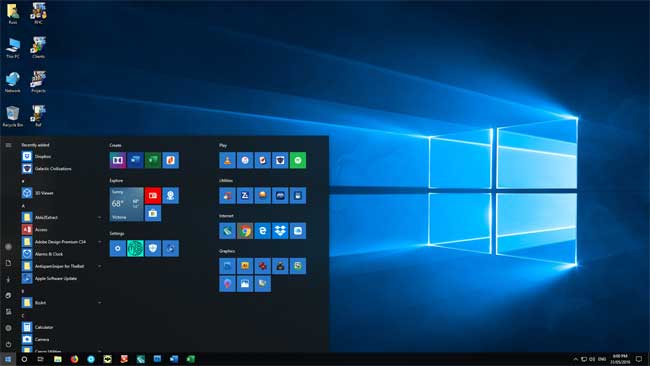
The open Start menu in desktop mode.
Tablet Mode
Tablet mode allows you to use your computer like a tablet by emphasizing Windows 10's touch capabilities.
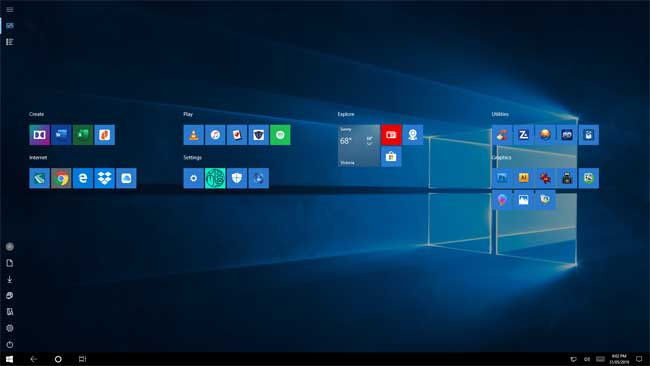
The open Start menu in tablet mode.
If touch becomes more common on computers, this feature will become more useful.
The Lock Screen
The lock screen can be configured with images from Windows Spotlight, theme pictures or images on your computer as well as various apps such as time/date, weather, etc. The lock screen is shown below:

The Taskbar
The taskbar has three main groups of content:
- Start, search and file viewer.
- Pinned apps.
- Network, speakers, language, clock/calendar, notifications, show desktop.
You can choose whether to include or configure several optional items including your search options, Cortana button, task view, people, windows ink and touch keyboard.
Show desktop is a very small area separated by a vertical line at the far right and clears everything on the desktop so you can see your icons and your wallpaper.
Many of these settings can be removed or modified by right-clicking the taskbar or via Windows settings and may be different in desktop and tablet modes.
Pin Frequent Apps on Taskbar
I recommend pinning only your most frequently used apps on the taskbar. Unpin unused Microsoft defaults then pin apps that make you more productive.
Pin additional apps on the Start menu that appears when you click on Start. These can be grouped, resized and arranged to suit your requirements. I recommend disabling live tiles unless you find the regular refreshing of content useful without noticeable slowing of your system.
Prioritize Notifications
There are several icons on the left side of the taskbar including Task View and even more on the left side including People, Windows Ink Workspace, Touch Keyboard, Language (replaces the language bar) and Notifications (which brings up the Action Center).
Settings for Cortana (available by right-clicking the Taskbar) has changed over time, beginning as a part of the Search/Cortana unit to separation of Cortana onto its own setting.
The taskbar contains a Search function which is presented as a search bar by default:

but can be simply the search icon or hidden altogether. Right-click the task bar to change the options.
Windows Settings
Windows 10 uses Settings to manage much of what was contained in the Control Panel in earlier versions of Windows, including Personalization. Some functions remain in Control Panel.

The Settings panel includes the categories shown in the above image, but is subject to change (my current Settings doesn't include the Cortana category as I've disabled Cortana).
The majority of settings are found under Settings (in the Start menu).
Searching for Advanced Options
If you don't find the setting you're looking for, try searching using the “Find a setting” search box. Windows 10 will provide suggestions but if you don't know what it is called, searching for it may be a challenge.
For example, search for “advanced printer setup” when installing a networked printer if the default Devices settings can't locate it.
Configuration Tools
Right-clicking the Start icon allows you to see a list of useful configuration options like Apps & Features, Device Manager, Disk Management, Network Connections and System without searching for them. Again, this listing is subject to change as Windows 10 evolves.
Tablet Settings
In Windows 10 you have much more control over how your computer starts and the transition is much smoother. You'll need to customize your experience for what works best for you and your hardware.
You can switch between tablet mode and desktop mode.
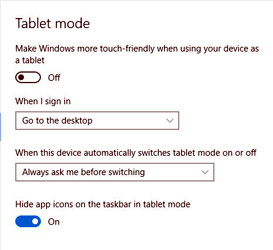
- In tablet mode the appearance and function is much like Windows 8.1. The desktop is unavailable.
- In desktop mode the Start button provides access to settings, an alphabetic listing of apps and pinned apps.
I've noticed that touch screen users are more likely to search for programs and settings than to look for them in a menu.
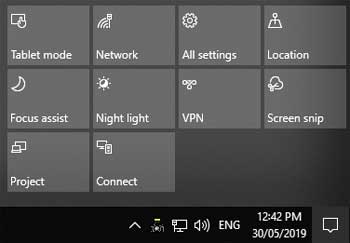
Action Center
The Action center (click on Notifications) includes a series of options for autoplay and program alerts as well as several settings. It is the highlighted taskbar icon located at the bottom right in the image below:
Taming Windows 10
How to fix the most annoying things in Windows 10. Some fixes require editing the Registry (advanced users only).
Learning More
These resources offer more help in personalizing various aspects of Windows 10:
- Who needs Windows 11? Try these hidden tricks to get more from Windows 10.
- 10 tricks and tweaks for customizing Windows 10 (free PDF) (registration required).
- Windows 10 Settings menu: The Personalization tab.
- How to master the start menu in Windows 10.
Privacy Concerns
Microsoft uses draconian law to put Windows, the world's most-used operating system, completely outside the control of its users. Neither Windows users nor independent experts can view the system's source code, make modifications or fixes, or copy the system.
— Free Software Foundation
Privacy is misrepresented. The “nothing to hide” mantra is an excuse to abuse personal privacy.
The most common retort against privacy advocates — by those in favor of ID checks, cameras, databases, data mining and other wholesale surveillance measures — is this line: “If you aren't doing anything wrong, what do you have to hide?”[This] accept[s] the premise that privacy is about hiding a wrong.
It's not. Privacy is an inherent human right, and a requirement for maintaining the human condition with dignity and respect.
— Bruce Schneier: The Eternal Value of Privacy
Don't confuse privacy with secrecy. I know what you do in the bathroom, but you still close the door. That's because you want privacy, not secrecy.
— Fábio Esteves
Loss of Privacy Irrevocable
Unlike a credit card refund, you can't simply undo the loss of privacy. Once your information is collected, it is extremely unlikely that it can be expunged. Your personal profile is sold over and over, becoming more vulnerable to data breaches.
The corporations and governments culling this information use anti-hacking laws to jail people that return the favour.
Privacy Protection Disabled by Default
If you purchased a computer with Windows 10 pre-installed or chose the default options when installing Windows 10 then chances are every privacy protection is disabled by default.
When you select privacy options Microsoft warns you that you'll lose some functionality.
When updating Windows 10 these low-privacy defaults have often been restored along with the default Microsoft apps instead of your preferred (and probably safer) alternatives.
Remember, Microsoft is planning on making money the same way Gmail and other “free” software vendors do — by culling and marketing your profile to advertisers.
Your Microsoft Account Tracks You
Microsoft requires a Microsoft account for access to the Microsoft Store and for other services including playing games in Xbox.
Even though I created a local account on my Windows 10 installations, I've noticed that Microsoft is tracking much more on my Windows 10 computer since I installed Microsoft 365.
This requires that you accept the Microsoft Services Agreement, a 12,000-word document where you essentially agree to give up your privacy.
Like many tech companies, Microsoft gathers certain information about you — what you do in Windows and on the web, how and where you use your devices, and what type of content and data you access.
— PCMag
What Does Microsoft Collect?
What kinds of data does Microsoft collect?
Privacy at Microsoft indicates how Microsoft collects information and what it is used for. Even if this isn't a big deal to you, Microsoft is still using your bandwidth to upload all that telemetry data.
Monetizing Windows
Microsoft has monetized Windows 10 unlike any previous version of Windows.
Don't believe what Microsoft tells you — Windows 10 is not an operating system. Oh, sure, it has many features that make it look like an operating system, but in reality it is nothing more than a vehicle for advertisements.
— BetaNews
Microsoft executives made it very clear that buying a Windows licence — or a device with Windows 10 on it — would ensure Windows owners had a licence to Windows 10 for the life of the device. But Microsoft has also said that it wants to entice you to pay for additional services over that lifespan.
— PCWorld
This provides an ongoing cash flow for Microsoft. Consumers will always get the latest and greatest without making a major purchase — as long as their hardware supports upgrades. Like mobile phone contracts, it assumes that you're willing to sacrifice your privacy for very little in return.
Free Apps Now “Freemium”
Many of the Microsoft Windows 10 apps could more accurately be called “freemium” rather than free. Advertising is built into the Microsoft Solitaire, News, Money and Weather and other apps.
Cortana ramps up Bing's market share with every search you make. OneDrive backs up everything to the cloud, and of course you can buy more storage space if you need it.The Video, Groove Music, and Xbox apps encourage entertainment purchases through Microsoft.
The Edge browser and the very operating system itself track you to serve targeted ads. The free Office apps encourage paid Office 365 subscriptions “to unlock full functionality.”
Underneath it all, the Windows Store is the repository for all of Microsoft's vaunted universal apps (and plenty of other things to buy).
— PCWorld
Microsoft Solitaire
Even the “free” Microsoft Solitaire Collection entices you with the following if don't sign in (i.e., if you play as a guest):
By signing in with a Microsoft Account, you earn Xbox Live Achievements, view Leaderboards, and save your game data in the cloud.
The Microsoft Solitaire Collection contains ads which can be disabled by purchasing a monthly or annual subscription from Microsoft.
Cortana: Your Personal Assistant
Cortana, like Siri and Google Assistant, is a surprisingly effective virtual assistant.
Accuracy Affects Your Privacy
Accuracy requires a lot of very personal information about your calendar, contacts, habits, relationships, current location, likes, dislikes, etc.
When you're signed into your Microsoft Account (anything but a local account), then nothing is anonymous. The data you provide is used to personalize advertising.
What Does “Personalized” Mean?
“Personalized” is a euphemism for profiled.
Personalization makes it more likely that you'll click on ads because they are customized to your interests based upon data culled from your surfing history and social media posts. Personalization makes it easier to sell to you.
Profiles Can Be Sold
Data aggregators develop a profile on you based upon personal information you provide and what is collected elsewhere.
Your profile can then be sold over and over again to third parties like advertisers and marketing companies.
Changing Privacy Settings
So how do you protect your privacy in Windows 10?
One of the first things you'll want to do is to make changes to the default settings. Some of these settings are chosen during the installation process. Others can be modified.
While you might not be able to control all the privacy settings, you should reset the ones that you can.
Check Settings After Updates
As with Facebook, updates to Windows 10 may change the way you control privacy or even undo privacy choices you've made in the past.
Click Start ⇒ Settings ⇒ Privacy. Check each of the categories listed on that page and those linked on the navigation pane.
You'll want to turn off at least these two privacy settings:
- The advertising ID is a unique identifier that helps to provide “personalized” ads (i.e., ads that are based upon sites you've visited, etc.). You're more likely to click on personalized ads than random ads.
- The “about how I write” allows Microsoft to track your keystrokes.
You'll also want to click on Manage my Microsoft advertising and other personalization info then look at the settings for each of the browsers installed on your Windows 10 computer to change those privacy settings.
Shared Updates
By default, Microsoft will obtain Windows updates not just from their servers but can also share them with other computers on your network or the Internet. The latter is not a good idea from a security point of view.
- Click on Settings then open Updates & Security.
- Click on Advanced Options then Choose How Updates are Delivered.
- Turn off Updates from more than one place.
If you're using wireless you can also limit the downloads of Updates by indicating that you're on a metered connection. This won't work for LAN (wired) connections.
Taming Cortana
Change Cortana's settings to reduce what you provide or turn it off altogether.
Other Privacy Guides
The following articles provide more information about Windows 10 privacy:
- Privacy at Microsoft.
- How to reclaim your privacy in Windows 10, piece by piece.
- Digging into and understanding Windows 10's privacy settings (2016).
A Local Account Helps to Preserve Privacy
I'd recommend signing in with a local account unless you need to move your work between multiple devices (and have considered the privacy implications).
You might see a security warning that you're not signed into your Microsoft account in the Windows Security panel. You can click “dismiss” to send it away.
- Local account vs. Microsoft account: Which one should I use?
- Create a local user or administrator account in Windows.
A local account limits or removes many of the capabilities of Windows 10 including personalized searches, effective use of Cortana and the ability to continue your current work on another device even if the data is stored in the cloud.
You will probably find that you don't need all these features and disabling them preserves your privacy.
Microsoft tells you how to create a secondary Local Account (one in addition to your Microsoft Account) but that still leaves you vulnerable, at least when logged into the Microsoft Account.
Local Account Option Hidden by Default
Microsoft has now removed easy access to the use of a local account (the local account option is now invisible if the device is connected to the Internet).
Windows 10…doesn't actually prevent users from creating a local account but it does urge users to connect the PC to the internet and doesn't state up front that the local account option is not displayed once it is connected.Microsoft has changed the name of the local account option to 'Domain join instead', which then allows admins to create an offline account.
— ZDNET
- Windows 10 users fume: Microsoft, where's our 'local account' option gone?
- How to create a local account in Windows 10.
- How to make your Windows 10 user account local.
- How to create a local account on Windows 10.
To preserve your privacy you'll need to do a clean install with only a local account after you've obtained your Windows 10 upgrade.
Privacy Statements
Privacy statements and terms of use often change but companies seldom dump existing information even if a customer doesn't accept the new policies and quits using the service.
Google Also Ignores Your Privacy
If you have a Gmail account and use Google Chrome as your default browser, then you've already given up much of your privacy, particularly if you're signed into your Google Account while browsing.
Remember, unlike Gmail and similar services where you're exchanging your information for a “free” service, Windows 10 is NOT free.
Even if you took advantage of the “free” upgrade from Windows 7 or 8.1 you'd already paid for those versions of Windows or it was included in the purchase price of your computer.
Your Data “In the Cloud”
Your data is stored in the cloud rather than on your computer on Microsoft OneDrive by default but this setting can be configured to save data only on your computer.
Apps like Mail and Calendar can access other cloud services like your iCloud or Gmail accounts.
The Nature of Mobile Access
Microsoft responded to consumer and corporate demand for “anywhere, any time, any device” access but will benefit greatly by monetizing the data they'll collect as a result.
Cloud-based information is accessible from anywhere by anyone having your login credentials. More significantly, once data is in the cloud you no longer completely control how your personal information is used.
Collected Data Unprotected
The companies collecting your personal data paid little or nothing for it, so they don't spend much on securing your data — certainly not what they spend protecting their own.
This won't change until the cost of being hacked is more than the cost of the necessary security upgrades.
Use a VPN
There are issues with security when using free WiFi unless you're also using a VPN.
There are issues with many VPNs (many of these companies are linked and some have shady histories). Essentially you're hiding your activity from your ISP but are now trusting your VPN not to share that information.
Windows 10 now has a VPN button in the Action Center that appears when you click the Notifications button.
Windows 10 Security
Microsoft boasts that Windows 10 is the most secure ever. At the very minimum this requires a fully-updated Windows 10 system with Microsoft's Windows Security enabled.
Of course, that claim is now being made about Windows 11:
Windows 11 is also secure by design, with new built-in security technologies that will add protection from the chip to the cloud, while enabling productivity and new experiences. Windows 11 provides a Zero Trust-ready operating system to protect data and access across devices.
— Microsoft
I'd recommend using a decent security suite for better protection.
New Security Features
There are several new security features, including Secure Boot, Windows Hello and ransomware protection that have appeared as Windows 10 evolved.
Initially Windows 10 Home users were denied the ability to delay updates, but after a couple of disasters, that policy was reversed. Be wary of delaying updates too long or you could lose support, but more importantly, many updates include fixes for zero-day vulnerabilities.
Data Collection Disturbing
Microsoft's data collection policies were quite disturbing when it was first released, partly because they could be shared with “unnamed partners” according to the Microsoft Services Agreement published at that time.
Since then, Microsoft has modified both its Services Agreement and Privacy Statement to be fairer:
Microsoft uses the data we collect to provide you with rich, interactive experiences. In particular, we use data to:
- Provide our products, which includes updating, securing, and troubleshooting, as well as providing support. It also includes sharing data, when it is required to provide the service or carry out the transactions you request.
- Improve and develop our products.
- Personalise our products and make recommendations.
- Advertise and market to you, which includes sending promotional communications, targeting advertising, and presenting you with relevant offers.
- Debloat Windows 10 shows you how to remove telemetry, which is unnecessary and drains system resources.
Microsoft Not Alone
Were it only Microsoft that was busy collecting the details of our electronic lives, it would be much easier to simply move to another system. However, that is not the case:
Almost everybody uses products or online services from Big Tech companies. These companies make up a considerable part of our online life.This concentration of power in some sectors of the digital market (think search, social media, operating systems) by a small number of companies is having devastating effects on our rights.
These companies are able to grow exponentially by constantly watching us and harvesting our personal data, which they then sell to data brokers, governments and dodgy third parties.
With billions of users, these companies acquire an unprecedented level of knowledge about people's most intimate lives.
— European Digital Rights (April 1, 2020)
- Best new Windows 10 security features.
- Secure your Windows 10 machine in 6 easy steps, here's how.
- How to secure Microsoft Windows 10 in eight easy steps.
- The Windows 10 security guide: How to protect your business.
You Need a Security Suite
Antivirus programs are no longer sufficient. You need a suite of security products to protect your computers and devices from the blended threats present today.
After many years of substandard protection, Windows Defender now provides sufficient protection for many users, albeit, with some caveats.
After years of lagging behind competitors, Microsoft Windows Defender has earned a coveted AV-Test "Top Product" award. The free, built-in antivirus software in Windows 10 performs just as well as — or even better than — many of its paid competitors. Your Windows PC can now repel the vast majority of malware threats right out of the box.
— Tom's Hardware July 30, 2018
While Windows Defender now provides excellent malware protection for home users right out of the box, I still prefer the comprehensive protection and privacy offered by my recommended security solutions.
Continual Updates
Continual (non-optional) updates greatly improve overall security but can also force updates that are undesirable because the engineers at Microsoft count on a uniform platform for the “Windows as a Service” environment.
Problematic Updates
Microsoft has released disastrous updates in the past on Windows 10 — consider the cases of loss of personal data following the October 2018 Update.
You might find that you're unable to reboot after a defective update.
Because Windows 10 Updates are an all-or-nothing deal, a bad update cannot be singled out for removal. You may be unable to uninstall a single component from the installed monthly updates.
Timing May Not Be Optimal
Major updates can take considerable time to download and install. If this happens in the middle of your workday or an important project that could be much more than inconvenient.
Even though your settings determine when the computer restarts, the download and installation can affect your computer's performance.
Removing Your App Default Choices
Microsoft sometimes insists on restoring their apps as defaults after some major updates.
Users wanting to use third party apps should be free to do so unless there is a verified security risk in doing so (in which case Microsoft should disable the app and provide information about the vulnerability).
Granted, apps available in the Microsoft Store can be vetted much easier than those downloaded from the Internet, but not everything is available that way and not all Store apps retain full functionality.
If a simple update fixes the problem, there is no need to uninstall or disable the third-party app.
The Windows Store was released with the then-pending Windows Phone in mind. There were calls to end the Store because it provided few real options. However, Windows 11 has revived the Store with new options and attempts at providing secure apps.
Ability to Delay Updates
Depending upon the version of Windows 10 you have and on changes brought about by the major updates, Windows may allow you to delay updates for up to a year. Delay longer than one year and you risk having your computer or device labelled as no longer supported.
Complex Passwords Necessary
Because the Microsoft ID is an online login ID, a very long, random and complex password is necessary.
This makes logging in prone to “fat finger” errors. The option to reveal what you've typed can guard against entry errors but doesn't help your memory.
“Microsoft Account Problem”
If you get a notice that there is a Microsoft account problem, don't try fixing your account. Try turning off Shared Experiences (Start ⇒ System ⇒ Shared Experiences) by disabling Nearby Sharing and Share Across Devices. This seems to fix the problem for most users.
If the problem persists, a glitch in the Windows help system may be responsible.
Few people use the Shared Experiences option, but you'll have to sign into your Microsoft Account on all your devices to make this work (and leave the settings for Shared Experiences enabled).
The PIN Option
Thankfully, an option to use a 4-digit PIN is available. The PIN only works on the current device (it is not a universal replacement for your password).
The PIN is tied to the specific device on which it was set up. That PIN is useless to anyone without that specific hardware.
— Microsoft
Hello's Biometric Verification
Windows Hello provides a secure method of replacing passwords with biometric verification — provided you have the supporting hardware.
Multifactor Authentication
Microsoft is requiring multifactor verification when accessing certain information from your Microsoft Account such as:
- when doing a clean install and registering it to your Microsoft ID;
- when making changes to your Microsoft ID; or
- any suspicious activity leads Microsoft to believe someone else might be using the computer or signed into your account.
Multifactor Options
The multifactor verification includes options to email or text special codes to an already-registered email address or phone number for your Microsoft Account.
Multifactor verification is only available when signed in with your Microsoft Account (not when using a Local Account).
Protecting Your PC
Learn more about protecting your PC while running Windows 10.
Windows Updates
Windows 10 requires a currently supported version installed on supported hardware.
Windows 10 will reach end of support on October 14, 2025.The current version, 22H2, will be the final version of Windows 10, and all editions will remain in support with monthly security update releases through that date.
— Microsoft
- Windows release health (Windows 10 & 11).
- Windows 10 release information.
- Windows 10 release history.
Security Updates
Security Updates are released on the second Tuesday of the month.
These patch vulnerabilities and address other concerns.
Unsupported versions do not receive these updates.
Only Update 22H2 Remains Supported
Windows 10 support has expired for all versions except for Update 22H2.
What Version?
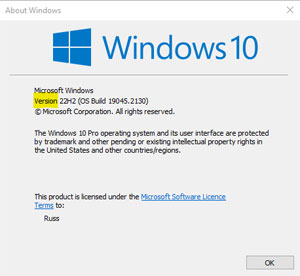
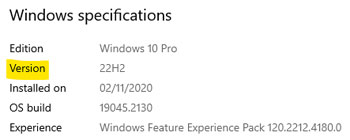
Learn which version of Windows 10 you're running.
Look for the version using one of these methods:
Run WinVer:
- Press the Windows key + R
- type winver in the Open box
- select OK
Look for the version information:
Open About in settings:
Start ⇒ Settings ⇒ System ⇒ About
Look for the version information under Windows Specifications:
Run Windows Update
The easiest and safest way to update Windows 10 is to use Windows Update.
Open your Windows Update (Settings ⇒ Update & Security ⇒ Windows Update) then select Check for updates.
Download Windows 10 Installer
Have issues with Windows Update or have a corrupt Windows installation?
Only download from Microsoft (don't use third-party downloads).
Media Creation Tool
The Media Creation Tool can upgrade the current PC to the latest version or create installation media (e.g., USB drive) to upgrade another PC.
Using the media creation tool rather than Windows Update has some risks. It may remove non-Microsoft software or your data if you don't choose the correct options.
Pause Windows Updates
While there have been issues with previous updates, not patching leaves your system vulnerable and Microsoft has been much more careful.
Don't Want Updates?
To pause updates:
- Start ⇒ Settings ⇒ Update & Security ⇒ Pause updates for 7 days.
- Don't “check for updates.”
Avoiding the Upgrade to Windows 11
Windows 11 may be offered to you:
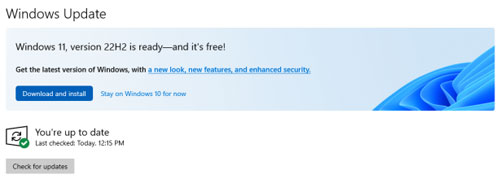
- This option appears only on computers capable of running Windows 11.
- Ignore the offer if you wish to stay on Windows 10.
Curious about Windows 11?
- Windows 10 22H2 vs Windows 11 22H2 (YouTube).
You can generally decline updates to Windows 11, although some have been displayed in micro windows upon Windows launch.
Third-party Tools
Steve Gibson's InControl can stop unauthorized updates.
There is also an option to add (and later remove) Registry keys that will block updating to Windows 11.
In either case you need to be careful that you don't avoid necessary security updates or lose your Windows 10 license because you failed to update.
Prepare for Recovery
Before updating Windows, be sure you have a plan for recovery.
- Being prepared for a disaster can be critical if an update fails.
- If you encounter problems, have a look at troubleshooting failed updates.
After updating Windows, do these seven things to ensure privacy and prepare for recovery in the event of a system failure.
Update 22H2
Released on October 18, 2022, installation is required to remain supported. Older installations will not update.
Support expires October 14, 2025. Note, this is an extension from original announced expiry of May 14, 2024.
What's New?
Update 22H2 has no feature updates, only minor fixes for reported problems but is required to stay supported until October 14, 2025. It seems clear that Microsoft is going to focus on Windows 11 feature releases.
However, if you're looking for huge features to further hold you off from upgrading to Windows 11, you're out of luck. Microsoft has confirmed that it's stopped working on new features for the previous release of Windows, with its full focus being on Windows 11.
— Tech Radar
Learn More
- Windows 10, version 22H2.
- Windows 10 22H2 is released, here's what we know.
- Windows 10 22H2 new features and changes.
- Windows 10 22H2 vs Windows 11 22H2 (YouTube).
- How to get the Windows 10 2022 Update.
- How to clean install Windows 10 22H2.
Updates History
The following are the major Windows 10 updates since launch:
- The Anniversary Update released a year after Windows 10 launch.
- The Creators Update (Spring 2017) was
designed to spark and unleash creativity.
- The Fall Creators Update (Fall 2017) completed the Creators Update and moving between devices including Android and iOS.
- The Spring 2018 Update (1803) included Timeline, sharing content via Bluetooth or WiFi.
- The October 2018 (1803) included the Cloud Clipboard, dark-mode File Explorer and other tweaks.
- The May 2019 Update (1903) included a light theme, speed improvements. Home users can pause Updates up to 35 days. 7 GB of dedicated space required.
- The November 2019 Update (1909) enhancements to existing apps and improved user control.
- The May 2020 Update (2004) provides security and productivity improvements and a new Edge.
- The October 2020 Update (20H2) is a fairly minor update which locks in Edge and modifies the Start menu.
- The May 2021 Update (21H1) is a fairly minor update which improves support for Windows Hello and Defender.
- The November 2021 Update (21H2) is a fairly minor update focused on stability and polish.
- The October 2022 Update (22H2) is a fairly minor (“scoped”) update addressing a few reported issues and will be the last feature update for Windows 10.
Troubleshooting Updates
Everything doesn't always go according to plan. Untested hardware combinations can break the update.
- The Windows 10 update guide: How to install and manage security and feature updates.
- 7 Tips to make Windows updates error-proof instead of error-prone.
- How to fix a stuck Windows update.
- Windows Update failed? Here are 10 fixes you can try (2019).
Recovery: Preparing for Disaster
There are bound to be some issues with any release no matter how carefully it was tested.
Develop a recovery plan before something happens.
You should always be prepared for a failure. Disasters are unpredictable.
Develop a Plan
Have a plan for how to recover if something goes wrong with Windows and it won't boot.
Your recovery plan should include knowing how to boot your computer into Recovery Mode as well as having the necessary recovery tools.
- A recovery drive can speed up recovery.
- If you haven't enabled System Restore in Windows 10 prior to disaster, you may be unable to recover.
- Without a current backup, you could lose all your personal data.
Maintain a Current Backup
You should regularly backup your files using a system that ensures that critical files are always recoverable.
Windows updates are a critical point where failures can occur. Backup your system prior to installing updates.
Create a Recovery Drive
A recovery drive can speed up recovery and provides a valuable asset if Windows fails to boot.
Be sure to recreate it after significant changes to your system (after each Windows Update).
Recovery Mode
If Windows 10 won't load, you'll need to be able to get into recovery mode. Windows 10 saw the removal of the F8 recovery options as a universal default. Methods of reaching the recovery mode vary.
Learn how your computer loads the recovery console before disaster happens then write it down.
Documenting how to boot into recovery mode will save a lot of stress if a boot failure happens.
Turn On System Restore Now
You can use System Restore to recover from a bad update, but you'll have to turn on System Restore in Windows 10 before that happens.
Upgrading
Windows 10 and Windows 11 are the only Microsoft options but there are alternatives to Windows.
Related Resources
On this site:
- Resources index
- Sharing Files
- Networking Windows 10
- Windows 11
- Replacing Windows
- The Cloud
- Windows services
- Your privacy at risk
- Multiple operating systems
- Windows support life-cycles
- Recovering Windows
Found this resource useful?

Return to top
russharvey.bc.ca/resources/windows10.html
Updated: June 14, 2025